Choose the AI model that best fits your task, and understand what your monthly token allowance covers.
Monthly Token Allowances
Token allowances vary by plan. Exact amounts depend on current model pricing, which adjusts automatically when provider prices change.
Plan
Price
Monthly Token Budget
Charged
$29.99/mo
~22M tokens
Kinetic
$59.99/mo
~51M tokens
Supersonic
$199.99/mo
~180M tokens
Actual token counts vary by model — cheaper models go further on the same budget. The figures above are approximate totals across all available models.
How Quota Works
Each plan includes a monthly token budget shared across all models. Tokens are deducted based on usage — more capable (or more expensive) models consume your budget faster. When your quota is exhausted, the session stops until it resets on the 1st of the month.
A sliding window rate limiter smooths usage over time to prevent quota burnout. It allows bursts of activity while keeping usage sustainable across your billing period.
Getting Started
Credit Top-Ups
Extend your workspace beyond the monthly quota without waiting for a reset.
Purchase credits at any time from the Credits page.
Credits are consumed after your monthly plan quota runs out — they extend your workspace without waiting for the monthly reset.
Credits never expire.
If you're on a plan, credits act as overflow — your plan quota is always used first.
2% platform fee: A small platform fee of 2% is added to the package price at checkout. This covers payment processing and infrastructure costs. The fee is shown transparently before you confirm your purchase.
Security & Privacy
Security & Isolation
Your workspace runs in a fully sandboxed environment — isolated from all other users.
Your AI Agent is Fully Sandboxed
Runs in an isolated container with no access to other users' data or the FileSurf infrastructure.
The agent has internet access and can call LLM APIs, but cannot access any internal FileSurf systems.
Each agent runs in an isolated container. No cross-user access is possible at the infrastructure level.
Network Access
The agent can browse the internet, download files, and call APIs. It cannot reach private networks or other users' environments.
Security & Privacy
Data Privacy & Retention
What happens to your files, conversations, and data.
Your files are stored only in your workspace. No other user or FileSurf staff member can access them during normal operation.
AI conversations are session-local and kept in short-term storage for retrieval. They are not used for model training. Conversations older than 1 day are automatically wiped by a daily scheduled job — there is no retention beyond that window.
LLM providers (Fireworks AI): All providers have zero data retention policies — your prompts and file contents are processed in memory only and never stored or logged by providers.
Data deletion: You can delete individual files at any time via the file explorer. When you cancel your subscription, your workspace data is preserved for a grace period, then purged.
Customize your AI agent's behavior and context without changing any code.
FileSurf's AI agent (Klawed) reads a special file called KLAWED.md from your workspace at startup. This lets you customize the agent's behavior persistently across sessions.
Where to Put It
/workspace/KLAWED.md — the primary location inside your container workspace
/KLAWED.md — also supported (filesystem root)
If both files exist, their contents are merged into the agent's system prompt automatically.
What You Can Put in KLAWED.md
Preferred coding style, languages, or frameworks
Project-specific context (e.g. "This is a Python monorepo, always use poetry")
Custom instructions (e.g. "Always write tests", "Reply in French")
Documentation links or architecture notes
Persona or tone preferences
The agent reads this file fresh each session, so edits take effect immediately on the next conversation.
Your Workspace
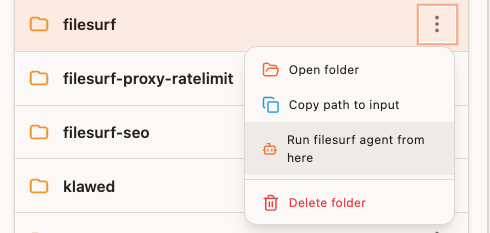
"Run FileSurf Agent Here"
Launch a focused agent session rooted to any file or folder in your workspace.
Right-click any file or folder in the File Explorer to open the context menu. The "Run FileSurf Agent Here" option opens a new chat session with the agent's working directory set to that file or folder's location.
When this is useful
Your workspace has multiple projects and you want the agent focused on one subfolder
You're debugging a specific file and want the agent to have it in immediate context
You want to run scripts or commands relative to a specific directory
Using the workspaceDir URL Parameter
You can also open a focused agent session directly via URL — no right-clicking required. Append ?workspaceDir=<path> to the FileSurf app URL to start the agent with its working directory pre-set to that path.
This is equivalent to using "Run FileSurf Agent Here" from the file explorer — the agent starts with its working directory rooted at the path you specify.
The path must be an absolute path within your workspace (e.g. /workspace/my-project). It is useful for bookmarking a specific project directory or sharing a direct link to a focused session.
Your Workspace
Pages
Your AI agent can spin up a live web app and show it to you instantly — no URLs, no port numbers, no setup.
When the agent starts a web server, it registers a Page. A Pages tab appears in the FileSurf interface within about a second. Click it to see the running app rendered right inside FileSurf — no copy-pasting URLs or opening new browser tabs required.
Up to 5 pages can be open at the same time, each with its own title. When the agent shuts down a server the tab disappears automatically.
What it's useful for
Reviewing a web app or dashboard the agent just built, without leaving FileSurf
Iterating on UI — ask the agent to make a change, see it live immediately
Running interactive tools (data explorers, form builders, notebooks) that the agent sets up for you
Previewing generated reports or visualisations that require a running server
How to use it
Just ask the agent to build and run something. For example:
"Build a small Flask dashboard for this CSV and open it for me"
"Start a live preview of the HTML report you just generated"
"Spin up a React dev server so I can see the UI"
The agent handles everything — starting the server, waiting until it's ready, and registering the Page. You don't need to do anything except click the tab when it appears.
Security
Pages are proxied through FileSurf's authenticated reverse proxy — only you can see them. The app running in the page has no access to other users' workspaces or FileSurf's infrastructure.
Your Workspace
Startup Jobs
Run scripts or agent prompts automatically every time your container starts.
Startup jobs run once each time your container starts. They're ideal for bootstrapping your environment — installing dependencies, running migrations, creating config files, or any other one-time setup that needs to happen before you start working.
Klawed writes these for you. There's no built-in text editor — just describe what you need and Klawed will create the file in the right place with the right content. You can also ask Klawed to modify or delete existing startup jobs.
Where Jobs Live
All startup job files go in /workspace/startup_jobs/. Any .sh or .md file placed there is automatically picked up on the next container start.
File Types
Extension
What happens
.sh
Executed as a shell script
.md
Sent as a prompt to Klawed, which carries out the instructions
Example Prompts
Just describe what you want to happen at startup:
"Create a startup job that installs my Python dependencies from requirements.txt"
"Add a startup job that runs my database migrations every time the container starts"
"On startup, check if /workspace/config.json exists and create it with default values if not"
Disabling a Job
Ask Klawed to disable a job, or prefix the filename with a dot (e.g. .seed.sh). Dotfiles are skipped at startup without being deleted — useful for keeping a job around but not running it yet.
Your Workspace
Daemons
Keep long-running processes alive inside your workspace — automatically restarted if they crash.
Daemons are long-running shell scripts that stay alive in the background. If a daemon process exits for any reason, it is automatically restarted within 15 minutes.
Common uses: web servers, API backends, file watchers, queue consumers, or any persistent process your workspace needs running at all times.
Klawed writes these for you. There's no built-in text editor — just describe what you want to keep running and Klawed will create the script. You can also ask Klawed to update or remove daemons.
Where Daemons Live
All daemon scripts go in /workspace/daemons/. Only .sh shell scripts are supported — each file is one daemon, named after the file (e.g. api.sh → daemon named api).
Example Prompts
Just tell Klawed what to keep running:
"Keep my Flask API server running on port 8080 as a daemon"
"Create a daemon that watches /workspace/input for new CSV files and processes them"
"Set up a daemon to run my Node.js worker process and restart it if it crashes"
Logs
Ask Klawed to redirect daemon output to a log file so it doesn't get lost. A typical pattern:
Using exec as the final command makes the process the direct child of the supervisor, which means restarts are cleaner and signals are handled correctly.
Stopping & Disabling
Disable temporarily: ask Klawed to disable the daemon, or prefix the filename with a dot (e.g. .api.sh). It won't be restarted on the next check cycle.
Stop permanently: ask Klawed to delete the daemon file. The process will not be restarted after the next check cycle (within 15 minutes).
Your Workspace
Cronjobs
Schedule scripts or agent prompts to run automatically on a recurring schedule.
Cronjobs run scripts or agent prompts on a recurring schedule using standard cron expressions. They're great for automated reports, periodic data processing, log monitoring, cleanups, or any workflow that needs to repeat on a timer.
Klawed writes and schedules these for you. There's no built-in text editor or cron editor — just describe what you want to run and how often, and Klawed will create the job file with the correct schedule. You can also ask Klawed to change the schedule or delete a job.
Where Jobs Live
All cronjob files go in /workspace/cronjobs/. The first line of each file is the cron schedule expression — Klawed sets this automatically when creating jobs for you.
File Types
Extension
What happens
.sh
Executed as a shell script
.md
Sent as a prompt to Klawed, which carries out the instructions
Example Prompts
Just describe what to run and when:
"Every morning at 9 AM, summarise new files in /workspace/inbox and append a summary to daily-log.md"
"Every hour, check /workspace/logs/app.log for ERROR lines and save a report"
"Clean up /workspace/tmp every night at midnight"
"Every Monday at 8 AM, generate a weekly summary of my project notes"
Cron Expression Format
Standard 5-field cron expressions — Klawed knows this format and will write the correct schedule based on your plain-language description:
minute hour day month weekday
Expression
Meaning
0 * * * *
Every hour at :00
*/15 * * * *
Every 15 minutes
0 9 * * *
Every day at 9:00 AM
0 9 * * 1
Every Monday at 9:00 AM
0 0 1 * *
First day of every month at midnight
Disabling a Job
Ask Klawed to disable a job, or prefix the filename with a dot (e.g. .cleanup.sh). Dotfiles are skipped by the scheduler without being deleted.
Features
Clear Conversation
Remove accumulated chat history without touching your files.
The Clear Conversation button removes all chat messages from the current session without affecting your files. Use it to:
Start a fresh conversation with a clean context (removes accumulated message history that might be confusing the model)
Save tokens on a complex session by clearing old back-and-forth
How to access
Via the command palette (Ctrl+P → search "clear")
Or as a command directly in the chat
Files are never deleted by clearing the conversation.
Features
Command Palette
A keyboard-driven launcher for every FileSurf feature.
Press Ctrl+P (or Cmd+K on macOS) to open the Command Palette.
Command
How to find it
New Session
Search "new session"
Features
Conversation History
Quickly re-run recent commands and re-open recently accessed files.
Press Ctrl+P and type to search through your recent commands and files. The palette remembers your 10 most recently used commands and recently opened files, so you can quickly re-run or re-open them without retyping.
Your Workspace
File Explorer
Your persistent sidebar for managing all files in your workspace.
The left sidebar is your persistent file explorer:
Upload files via drag-and-drop or the upload button
Download files back to your machine
Right-click for context menu actions (rename, delete, run agent here)
Files persist across sessions — they stay in your workspace until you delete them
Supports all file types: code, documents, images, spreadsheets, archives, etc.
Features
Voice Input
Dictate complex prompts hands-free using your browser's speech recognition.
Click the microphone button in the chat input bar to use voice input. The browser transcribes your speech to text, which is then sent to the AI. Useful for hands-free dictation of complex prompts.
Your Workspace
Preview Panel
Render HTML, PDFs, images, and code right inside FileSurf.
The right panel can render:
HTML files in a sandboxed iframe
PDF files inline
Images inline
Code files with syntax highlighting
Connected Accounts
Bring your ChatGPT Subscription
Connect your ChatGPT subscription (Plus, Pro, or Team) so FileSurf routes requests through your own OpenAI quota.
What is a refresh token?
OpenAI's ChatGPT uses a browser-based OAuth session. The refresh token is a long-lived credential stored in that session — FileSurf uses it to make API calls on your behalf, drawing from your ChatGPT quota instead of FileSurf's own pool.
Treat your refresh token like a password. FileSurf stores it encrypted and never logs it, but you should still revoke it if you suspect it has been leaked — just disconnect and reconnect to issue a fresh one.
How to obtain it
FileSurf provides a small shell script that uses OpenAI's device-authorization flow. It contacts OpenAI, prints a URL and a short code for you to approve in your browser, then outputs the refresh token for you to paste into Settings.
Requirements
macOS or Linux
bash and curl — both are pre-installed on most systems
A paid ChatGPT subscription (Plus, Pro, or Team)
Windows is not supported. Use a Mac, a Linux machine, or WSL.
Run the script below in your terminal. It contacts OpenAI, prints a URL and short code to approve in your browser, then outputs the refresh token to paste into FileSurf.
The CLIENT value in the script (app_TlhIBpuQDJLnLhbAkFpDH9rS) is OpenAI's own public client ID for this flow — it's the same for everyone and is already included. You don't need to find or supply your own.
bash <<'EOF'
CLIENT=app_TlhIBpuQDJLnLhbAkFpDH9rS
SCOPE="openid profile email offline_access"
R=$(curl -sf https://auth0.openai.com/oauth/device/code \
  -d "client_id=$CLIENT&scope=$SCOPE")
CODE=$(echo "$R" | grep -o '"device_code":"[^"]*"' | cut -d'"' -f4)
USER=$(echo "$R" | grep -o '"user_code":"[^"]*"'   | cut -d'"' -f4)
URL=$(echo  "$R" | grep -o '"verification_uri_complete":"[^"]*"' | cut -d'"' -f4)
EXP=$(echo  "$R" | grep -o '"expires_in":[0-9]*'   | grep -o '[0-9]*')
printf '\nGo to:  %s\nCode:   %s  (expires in %ss)\n\nWaiting for approval...\n' "$URL" "$USER" "$EXP"
for i in $(seq 1 60); do
  sleep 5
  T=$(curl -sf https://auth0.openai.com/oauth/token \
    -d "client_id=$CLIENT&grant_type=urn:ietf:params:oauth:grant-type:device_code&device_code=$CODE")
  RT=$(echo "$T" | grep -o '"refresh_token":"[^"]*"' | cut -d'"' -f4)
  if [ -n "$RT" ]; then
    printf '\nYour refresh token (paste into FileSurf):\n\n%s\n' "$RT"
    break
  fi
done
EOF
Step-by-step
Copy the script above and paste it into a terminal on your Mac or Linux machine.
The script contacts OpenAI and prints a URL and a short code, e.g.: Go to: https://auth0.openai.com/activate?user_code=XXXX-XXXX Code: XXXX-XXXX (expires in 900s)
Open the URL in your browser. Log in to your ChatGPT account if prompted.
Confirm the code shown in the browser matches your terminal output, then click Allow.
Your terminal will print the refresh token. Copy the full token string.
Open Settings → Connected Accounts → ChatGPT, click Connect, paste the token, and click Save.
Refreshing or disconnecting
If your connection stops working (e.g. OpenAI invalidates the token after a password change), simply click Disconnect and repeat the steps above. The new token replaces the old one immediately.
Changes take effect on the next workspace start — if your workspace is already running, restart it for the new credentials to apply.
Security & Privacy
Secret Redaction
FileSurf automatically detects and masks credentials before they reach the AI model or any log file — no configuration required.
How it works
Every time the AI agent reads a file, runs a shell command, or writes a log entry, the output is automatically scanned for sensitive values. Anything that looks like a credential is replaced with a placeholder before the agent ever sees it.
This happens silently in the background. You don't need to sanitise inputs manually or worry about accidentally including a .env file in your workspace — the agent handles it transparently.
If you see *** or [REDACTED PRIVATE KEY] in an agent response, that's secret redaction working as intended — the actual value was masked before it reached the AI.
What gets redacted
The agent recognises a wide range of credential formats:
Database connection strings — passwords embedded in URIs like postgres://user:***@host/db
How values are masked
Two masking styles are used depending on how long the secret is:
Short secrets (under 18 characters) are fully replaced with ***
Longer secrets keep the first 6 and last 4 characters with ... in between — for example sk_liv...x9Qz. This preserves just enough context to identify which key was present without exposing the full value.
Where redaction is applied
Redaction runs at every point where sensitive data could leak:
File reads — content is scrubbed before being passed to the AI
Shell command output — stdout and stderr are scrubbed before the AI sees them
Log files — every log entry is scrubbed before being written to disk